In this blog post, we provide a step-by-step guide on how you can connect to multiple tables in a local folder in Power BI Desktop.
Why Use the Folder Connector
A common challenge new Power BI users face is handling data that is split across multiple, separate files. Manually creating separate queries in Power Query (the data engine behind Power BI) for every single file in the folder and trying to merge them together later is tedious and can result in poor report performance. It also creates unnecessary work when new files are added to the folder, requiring the creation of a new query in Power BI Desktop and a hard publish (i.e., you cannot set up scheduled report refreshes). Not to mention, if the designated data analyst is away or forgets to refresh the data, reports can be out of date.
But Power BI provides a built-in folder connector that eliminates this entirely, allowing users to bring all their data together in a few clicks.
In this blog post, we show you how to connect to multiple data files in Power BI using the Folder connector – we do this through an example.
Want to follow along with our example? Download our free template!
To help you better understand this concept, we put together a Power BI template and sample Excel data.
-
Free Power BI Template: Connect to Multiple Files in Local Folder in Power BI Become more efficient at connection to...
-
Free Power BI Template: Connect to Multiple Files in Local Folder in Power BI Become...
Step 1: Locate the Folder Connector
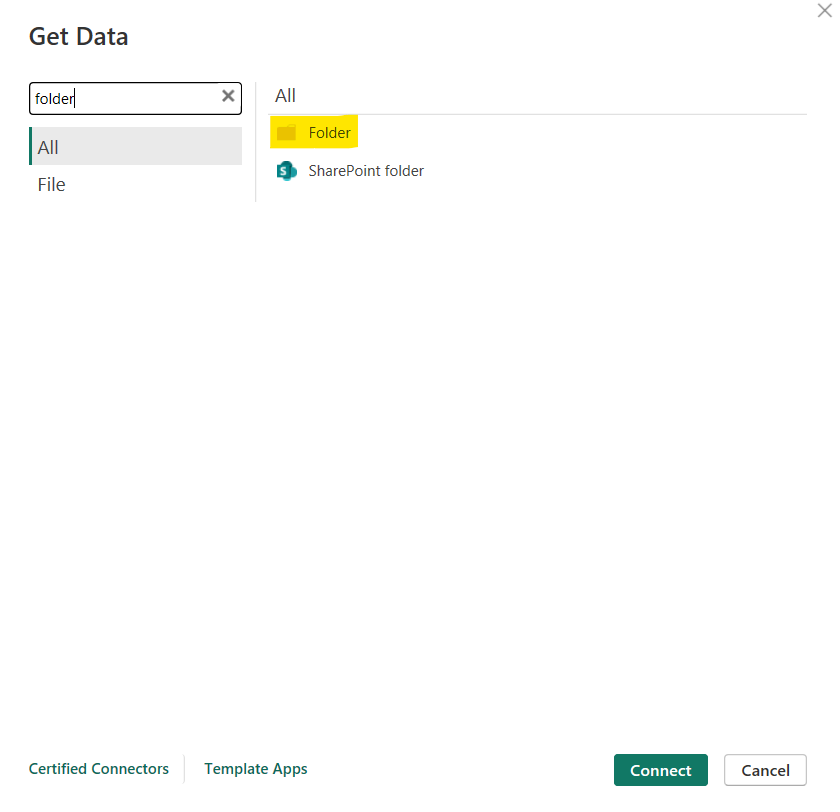
To get started, open the Power BI Desktop application, navigate to the Home tab. Next, click on Get data, and select More… to open the full list of available data connectors. From the Get Data dialog box that just opened, select Folder from the list of options, or type “folder” into the search bar.
Note that the latter method will also bring up the SharePoint folder connector which is not the same as the Folder option. The SharePoint folder option is for connecting to cloud-hosted files on a Microsoft SharePoint site using a URL.
To learn more about connecting to a file in a SharePoint folder, check out our [How To] Import Data from a File Stored in SharePoint into Power BI blog post.
In this example, the option that we want, the local Folder option, is for files stored directly on your computer.
Step 2: Choose your Folder Path
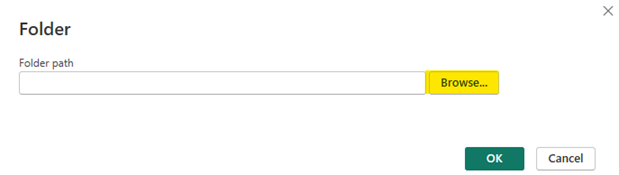
Next, you can click Connect. When you do this, Power BI will prompt you to provide the specific folder path.
- If you already know the exact file directory, you can paste it directly into the input box.
- Otherwise, click the Browse button to navigate through your computer’s folders and find your desired folder.
Click Ok then click Ok again to proceed.
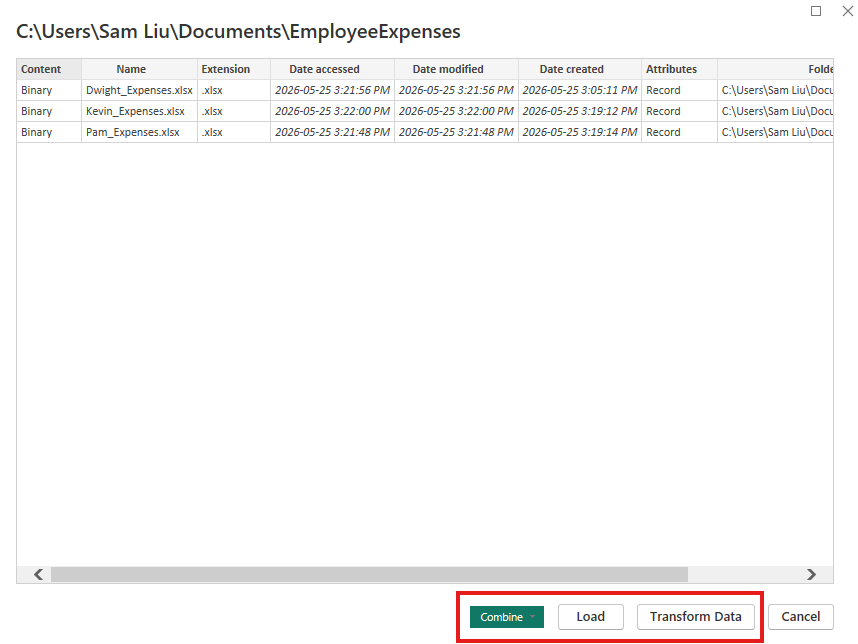
Once you have successfully connected the folder, Power BI will display a preview window showing all the files it found within the folder. It provides metadata about those files like the date accessed, date modified, date created, and the folder path. At this point, you will see a few options at the bottom of the window: Combine, Load, or Transform Data. Let us explore what these options mean when connecting to your data folder.
Understanding the Data Options
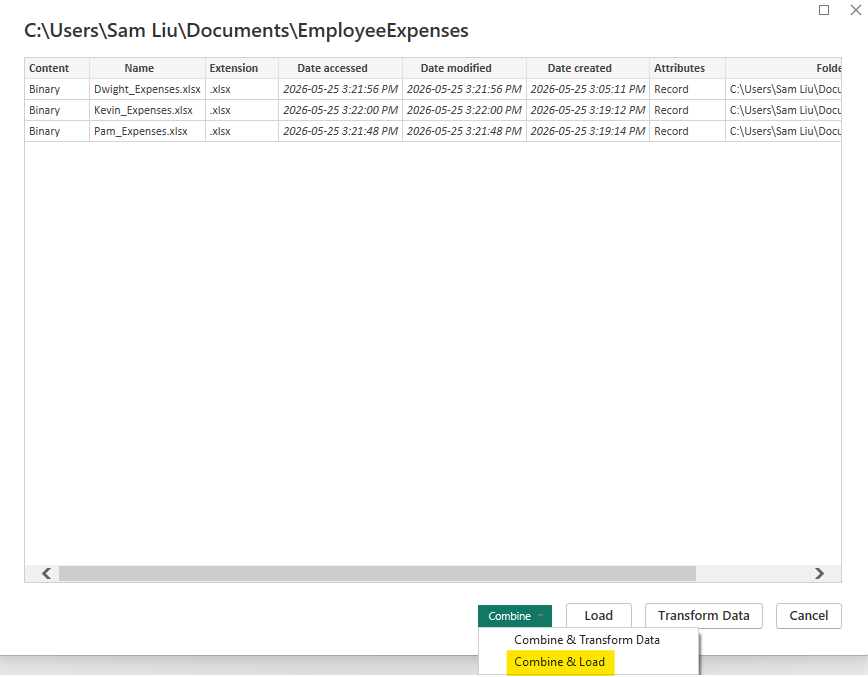
The Combine option has a drop-down menu where users can select whether they want to Combine and Load or Combine and Transform Data. This option is ONLY ideal if you have a folder with multiple files that follow the exact same data structure (i.e., same file type, number of columns, and column names).
- Combine and Transform Data combines all the files with a query and launches the Power Query Editor which allow users to transform their data.
- Combine and Load combines all the files with a query and loads it directly into your data model.
The Load option loads the data into the data model. If you have many data files that do not need to be loaded into Power BI or other file types, this is not the right selection. This option would ONLY be ideal if you have a single or a few data tables that you want to visualize AND they are ready for analysis (i.e., no data cleaning necessary).
The Transform option opens the Power Query Editor, where you can make modifications to your data including eliminating files you do not need. This is ideal if you have a lot of files in your folder.
For this guide, we will click Combine and select Combine and Load since all our files follow the exact same structure. If you are unsure of the structure of the files, Combine and Transform Data would be the appropriate approach.
Step 3: Choose a Sample File Template
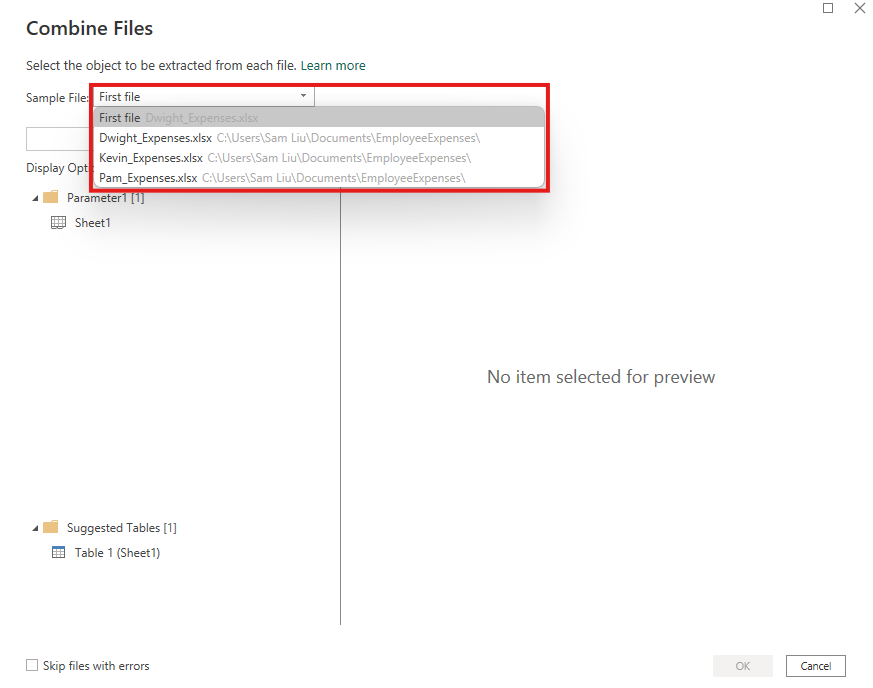
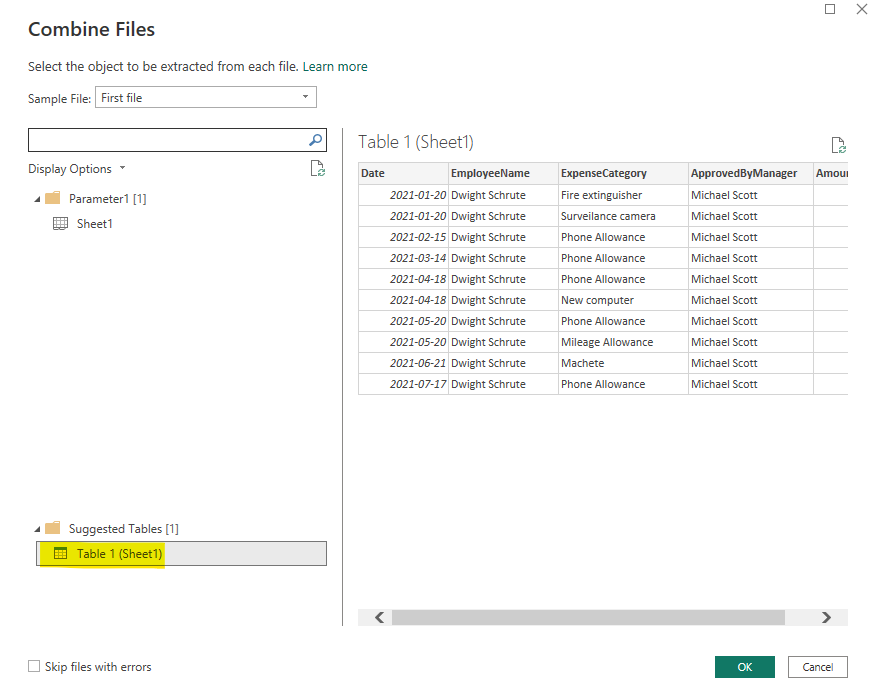
Next, Power BI will open a Combine Files dialog box and ask you to select a sample file to use as a structural template. From the Sample File drop-down menu, you can either choose the First File option or one specific file to use as the sample file. In our case, it does not matter since all the files follow the same structure. Note that choosing the wrong file as your sample file can cause Power BI to build its data rules around an incorrect layout. If that happens, Power BI will try to force all the other files in the folder into that wrong structure, which could result in missing data columns or a broken query.
Step 4: Load & Verify Your Data
Now you can select the specific sheet or table recognized by Power BI in Display Options to load into the data model and click OK.
Power BI will evaluate the files, establish the data model, and combine the data into a single table.
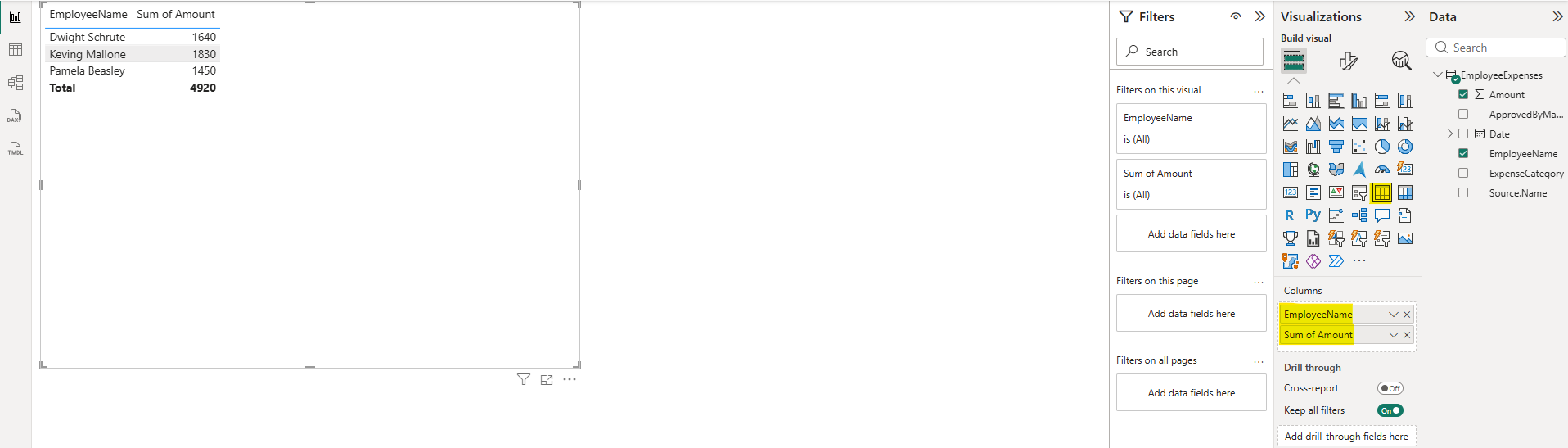
To verify the merge worked correctly, you can build a quick visual on your report:
- Select the Table visual from the Visualizations
- In our case, we can drag Employee Name and Amount column into the table.
Now, the visual should display each employee alongside their aggregated expense claims.
Wrapping It Up
Connecting to multiple files in a folder using Power BI Desktop is a straightforward process that can save you significant time and effort. Rather than manually importing and merging files one by one, Power BI’s built-in folder connector allows you to bring all your data together in just a few simple steps.
Need Help Getting Started With Power BI?
Our Microsoft Certified consultants can help with the implementation of Power BI in your organization