Introduction
Adding a column with URLs to a table in Power BI seems straightforward and simple, but sometimes the links aren’t clickable. It shows up looking like a normal web address, but clicking it does nothing, it just behaves like plain text.
In this blog post, we help you troubleshoot why you can’t click links in Power BI. We’ll walk through the fix using an example, so you can see the problem and how to resolve it.
Understanding the Problem
When you bring a URL field into a Power BI table visual, Power BI treats it as plain text by default. Even if the value in the column is a perfectly valid web address, Power BI won’t make it clickable unless it knows that the field is a URL, not just a string of text.
In our example, when we add the Published Link column to our table visual, the URL appears, but it’s not underlined, not blue, and not clickable like a standard hyperlink. Instead, it looks identical to other text fields.
Step 1: Check the Data Type in Power Query
Before anything else, let’s rule out the most basic issue: the column being set to the wrong data type.
To verify, open the Power Query Editor and find your URL column. Look at the icon to the left of the column name in the header.
You want to see ABC, which indicates a text data type. If you see anything else, like a number icon or an undefined/question mark, you’ll need to change it to Text first. To do that, right-click the column header, select Change Type, and choose Text.

Once this is verified, we can close the Power Query Editor and head back to the main Power BI Desktop View.
Step 2: Check the Data Category
If the problem isn’t in the data type, then it could be the Data Category. Power BI uses the Data Category to understand what kind of information a field contains, beyond just the data type.
To verify/change the Data Category:
- In Power BI Desktop, click on your URL column in the Data pane or select it in the table visual.
- This will open the Column Tools tab at the top of the screen.
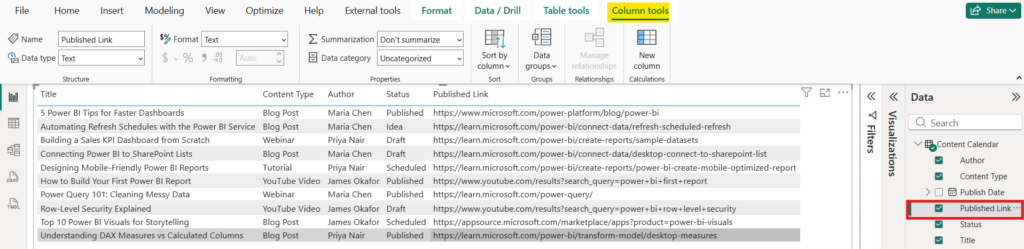
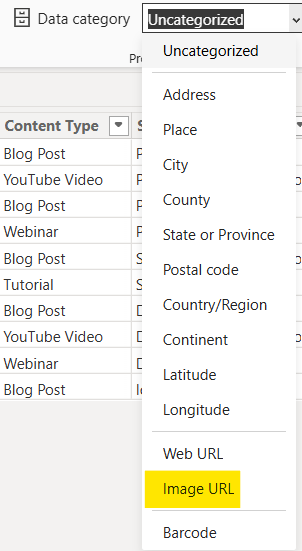
3. Look for the Data Category dropdown. By default, it will likely say Uncategorized.
Click the dropdown and select Web URL.
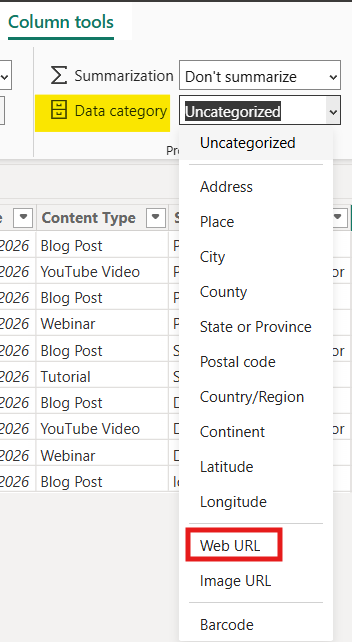
That’s it! Once you change the data category to Web URL, Power BI should immediately recognize the field as a clickable link.
Now, when you use this field in a visual, such as a table, you will be able to click the URL hyperlink and navigate to the corresponding path.
A Note on Other URL Categories
One thing to note is that when you expand the Data Category dropdown, you’ll notice two URL-related options:
- Web URL: Use this to create a clickable link that opens a web page.
- Image URL: Use this if your URL points to an image and you want to display that image inline inside of your Power BI report.
Wrapping it Up...
If your URL links in Power BI aren’t clickable, don’t panic. The fix is almost always the same:
- Make sure your column is set to a Text data type in Power Query.
- In Power BI Desktop, select the column and change its Data Category from Uncategorized to Web URL.
Once that’s done, users will be able to click directly through to the destination web page. It’s a small setting that’s easy to miss, but once you know where to look, it only takes a few seconds to fix.
Need Help Implementing Power BI at Your Organization?
Our Microsoft Certified consultants can help

![Read more about the article [How To] Replace Column Values in Power Query](https://goanalyticsbi.com/wp-content/uploads/2024/03/How-to-replace-column-values-300x157.png)