
Introduction
In this blog post, we will explore when to deselect Enable Load in Power Query.
The Enable Load option in Power Query is one of those hidden features that not a lot of people know about – but it is a powerful one. It’s selected by default, so most people never think twice about it but there are times when leaving it on can work against you.
So, let’s explore the problem of this default option and tackle when disabling this option makes sense.
Understanding the Problem
When Enable Load is selected, the results of a query are loaded into your Power BI data model. The table then shows up in your Fields pane and is available for visualization.
That’s what you want for most of your queries. However, not every query in Power Query serves the purpose of visualization. Sometimes a query exists only to help you build another one (helper queries anyone?). If you leave Enable Load on for those, they end up in your data model as extra tables you don’t need.
When you deselect Enable Load, the query stays in Power Query and can still feed other queries. It just doesn’t get loaded into the data model.
Let’s tackle an example together.
Example
In our example, we’re building a Power BI report to analyze apprenticeship registrations and completions in Canada by using some data we gathered from Statistics Canada. Since Statistics Canada publishes these two metrics as distinct data tables, we end up with two separate queries in Power Query:
- Apprenticeship registrations gives us the number of apprentices by their registration status, such as new registrants, reinstatements, and so on.
- Apprenticeship completions gives us the number of apprentices who have completed apprenticeships.
On their own, each dataset tells only half of the story. To properly analyze apprenticeships, we want registrations and completions together in one place. To do this, we must append these two datasets.
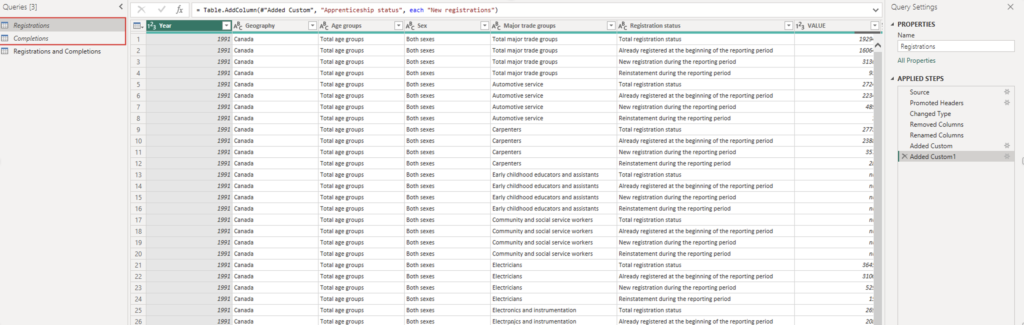
Append the Queries
After some data cleaning on both datasets, to ensure we had consistency in both, we used Append to stack the two datasets on top of each other. We created a new query called Registrations and Completions.
Now, with both queries appended into one, we can analyze the number of apprentices by registration status and tell the full story of how many apprentices registered versus completed in any particular year.
This appended query is what will eventually help us visualize this data. So, what about the other two queries we loaded initially?
Ask Whether You Need the Originals
Now that Registrations and Completions (appended query) has everything we need to conduct our analysis we can take a step back and ask: do we need our original queries (Registrations and Completions) for our visuals?
In this case, the answer is no. Everything we want to visualize exists in the appended query. The two originals were only interim queries, used to build the final table.
If we leave them loaded, our data model ends up with three tables holding overlapping data. That adds clutter to the Fields pane and makes it easier to accidentally build a visual from the wrong table.
Deselect 'Enable Load'
To keep our data model nice and clean, we deselect Enable Load on both source queries. To do this, in Power Query Editor, we can find the Registrations and Completions queries under the Queries pane and then, one at a time, perform the following tasks:
- Right-click each query and click Enable Load to deselect loading (the checkmark should disappear)
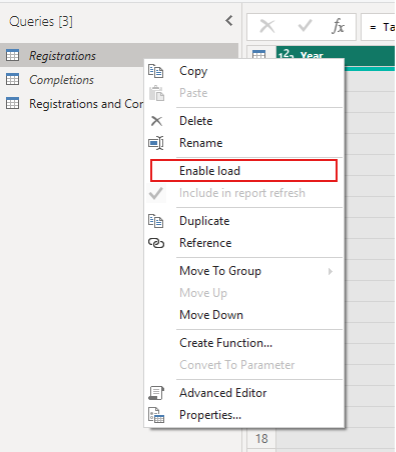
After deselecting Enable Load, you will notice that your deselected queries will look slightly different – they will show up in italics. This is how you can easily spot which queries will be loaded to the data model and which ones are helper queries only.
Once you close and apply your changes, only the queries where Enable Load remains selected will be loaded into the data model and available for visualization. The helper queries (deselected) are still there and still feed the combined table – even when you perform a data refresh. They just don’t show up in your data model anymore.
What 'Disabling Load' Actually Means
It’s easy to worry that turning off Enable Load will break something and it’s worth clarifying that you’re not deleting the query. It stays in Power Query, and any query that depends on it keeps working, so you’re not losing any data. The data still flows through to the combined query. It just isn’t stored as its own table in the model.
Additionally, you can undo it anytime. If you change your mind, right-click the query and select Enable Load again.
Wrapping it Up...
If your data model is getting cluttered with tables you never use in your visuals, take a look at your queries. The rule of thumb is simple:
- If a query is only an interim step in building another query, deselect Enable Load.
- Keep Enable Load on for the final query that holds the data you want to visualize.
The result is a cleaner and easier-to-navigate data model that contains all the data you need in one place.
Need Help Implementing Power BI at Your Organization?
Our Microsoft Certified consultants can help