
If you’re new to Power BI, opening Power BI Desktop for the first time can feel overwhelming. With dozens of buttons, multiple panes, and several views, knowing where to start isn’t always obvious.
Most Power BI projects follow a straightforward process: connect to data, prepare it, build visualizations, and share insights. Once you know where those activities happen, the interface becomes much easier to navigate.
This guide explains the key areas of Power BI Desktop, what they are used for, and which features new users should learn first. It also covers newer AI and Microsoft Fabric capabilities.
What Is Power BI Desktop?
Power BI Desktop is Microsoft’s free report development tool for connecting to data, building interactive reports, and sharing insights. It is the primary authoring environment for Power BI.
It can bring together data from sources such as Excel, SQL Server, SharePoint, cloud applications, and data warehouses.
Completed reports can be published to the Power BI Service for access through a web browser, mobile device, or embedded application.
Most Power BI projects follow the same workflow:
- Connect to one or more data sources
- Prepare and transform the data
- Create relationships between tables
- Build report pages and visualizations
- Publish and share insights with others
The interface is organized around these activities, with different views and tools supporting each stage.
Power BI Desktop can also be used alongside Microsoft Fabric, which adds capabilities for storing, preparing, and managing data.
The Three Primary Views in Power BI Desktop
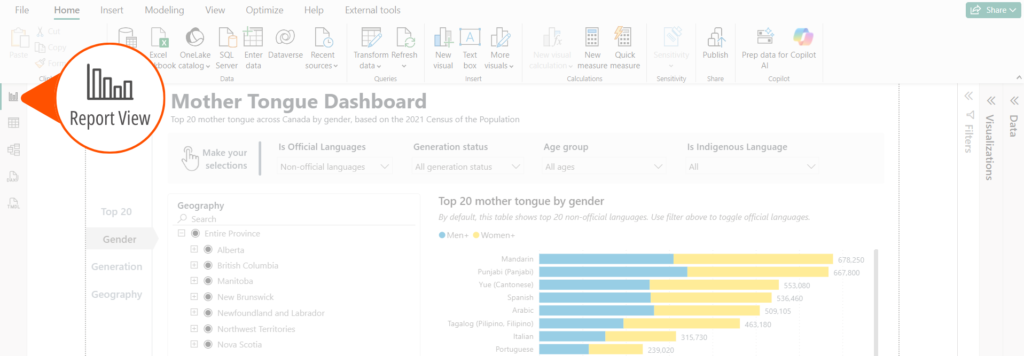
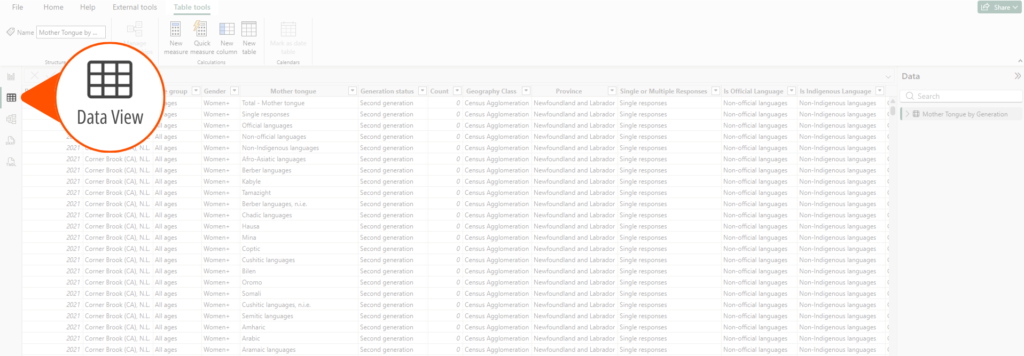
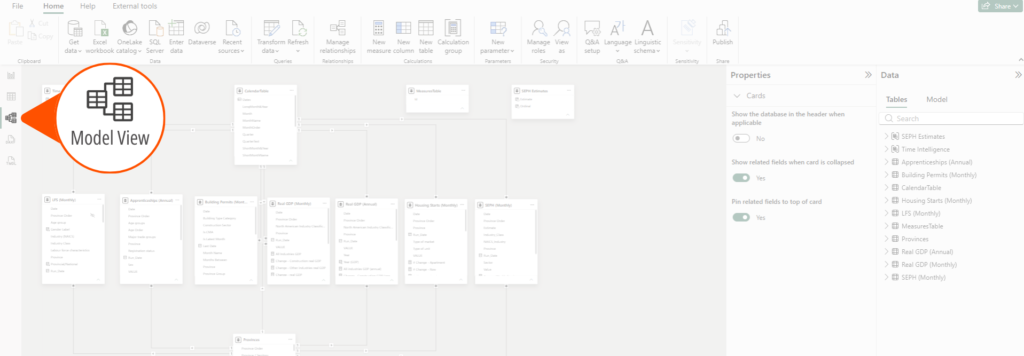
Power BI Desktop has three main views on the left side of the application: Report View, Data View, and Model View.
Report View
Report View is where you build and format reports. It contains the canvas used to arrange charts, tables, KPI cards, slicers, and other content.
You also use Report View to format visuals, configure interactions, and organize report pages.
Data View
Data View displays the rows and columns loaded into your model, similar to a spreadsheet. Use it to validate values, confirm data types, and troubleshoot unexpected results.
While beginners typically spend less time here than in Report View, it is a useful tool for understanding what’s happening behind the scenes.
Model View
Model View displays the relationships between tables in your Power BI model. It provides a visual map of how tables such as customers, products, dates, and transactions are connected.
Some newer Power BI features, including capabilities used in Microsoft Fabric environments, also build on the foundation of a well-structured data model, making this view increasingly important as your skills develop.
For beginners, don’t feel like you need to master all three views immediately. Most users start in Report View, occasionally jump into Data View to verify information, and gradually become more comfortable using Model View as their reports and datasets grow more sophisticated.
The Core Areas of Report View
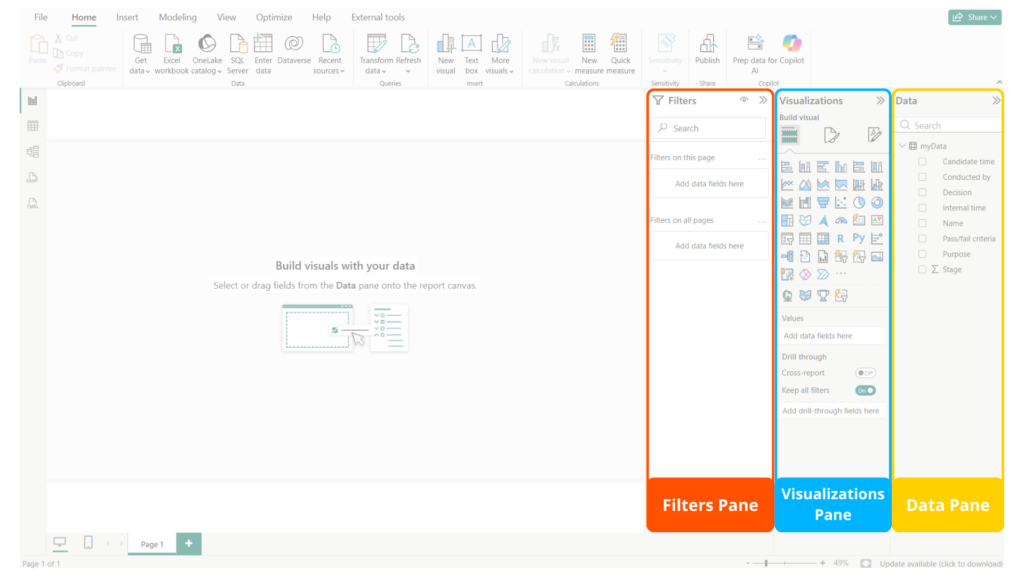
Most day-to-day report building happens in Report View, which contains four primary areas: the Report Canvas, Data Pane, Visualizations Pane, and Filters Pane.
Report Canvas
The Report Canvas is the central workspace where charts, tables, KPI cards, images, text boxes, and slicers are placed.
Think of it as a blank PowerPoint slide where you arrange visuals and control the page layout.
Data Pane
The Data Pane contains the tables, columns, hierarchies, and measures available in your model.
To build a visual, select a visual type and add fields from the Data Pane. For example, use Date on a chart’s X-axis and Revenue as its value to create a sales trend.
Visualizations Pane
The Visualizations Pane is used to create and customize visuals, including charts, tables, matrices, maps, KPI cards, and slicers.
After selecting a visual, use this pane to format titles, colours, labels, tooltips, interactions, and other display settings.
Filters Pane
The Filters Pane controls which data appears in the report. Filters can apply to one visual, the current page, or the entire report.
For example, a report-level filter could limit a company-wide sales dashboard to the current fiscal year.
For more details on the differences between the Filters Pane and the Slicer visual and when to use both, check out our blog post on Using Slicers vs. the Filter Pane in Power BI or watch our YouTube video on the topic.
Where Does Power Query Fit?
Power Query is Power BI’s built-in data preparation and transformation tool. Open it by selecting Transform Data from the Home ribbon after connecting to a data source.
Use Power Query to clean, shape, and combine data before loading it into the model. Common tasks include:
- Removing unnecessary columns
- Renaming fields
- Filtering rows
- Correcting data types
- Merging data from multiple sources
- Splitting or combining columns
For a deeper look at the interface and transformation techniques, read our Introduction to Power Query blog post or watch our Power Query 101 YouTube video.
Often Overlooked Features
Once you’re comfortable with the main interface, several additional features can make reports easier to manage and use.
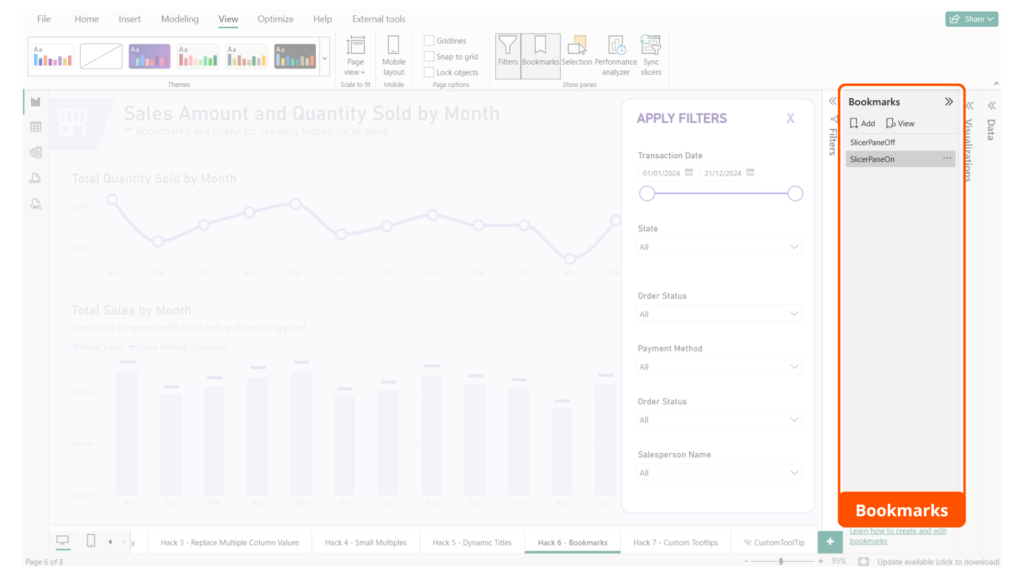
Bookmarks
Bookmarks save the current state of a report page and can support navigation, show/hide panels, and alternate views of the same data.
In our 7 Power BI Hacks blog post and YouTube video we show you how we used Bookmarks to create a hidden slicers pane.
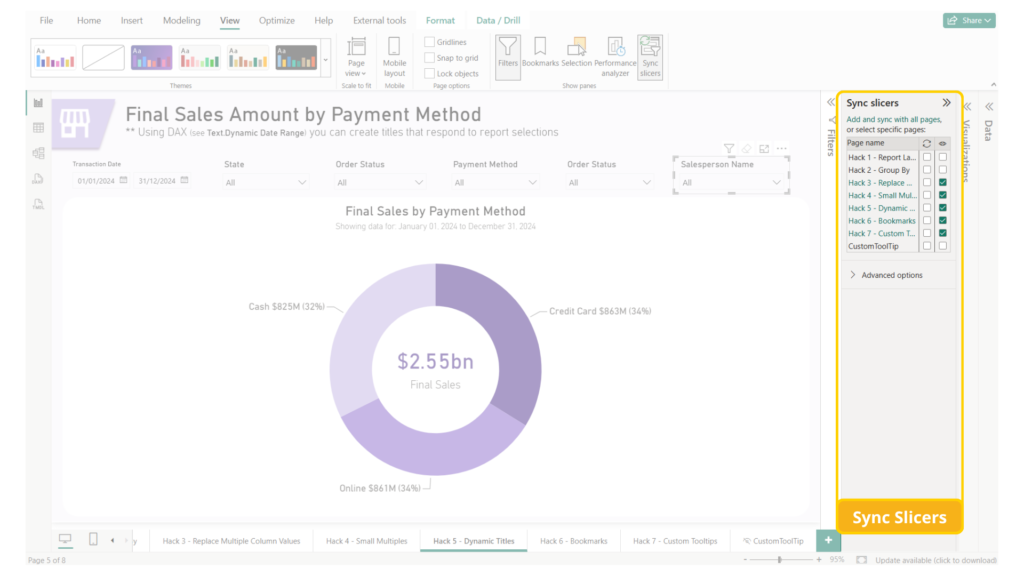
Sync Slicers
Sync Slicers carries a slicer selection from one report page to other pages. For example, selecting Italy on Page 1 can apply the same filter on Pages 2, 3, and 4.
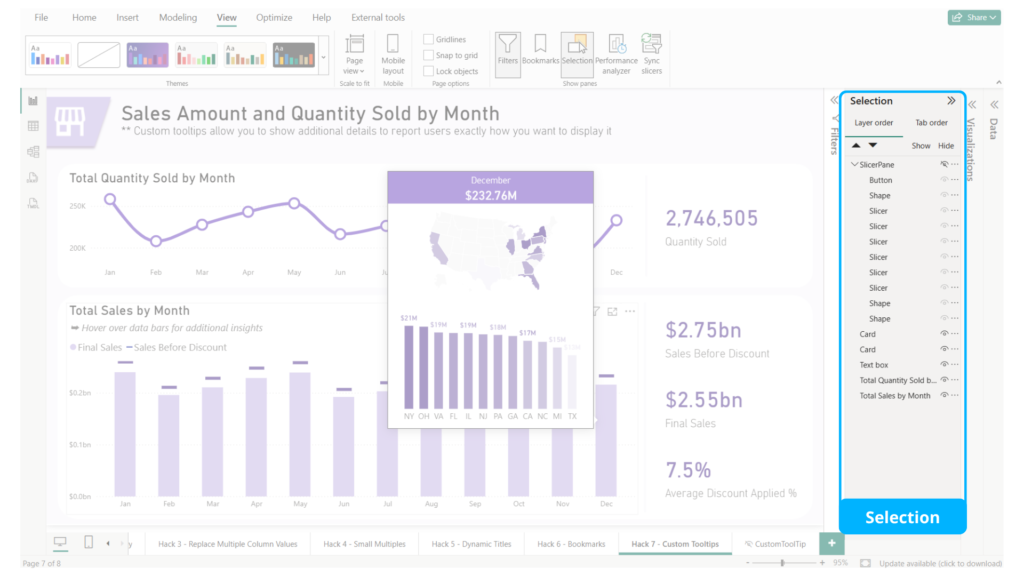
Selection Pane
The Selection Pane helps you locate, rename, show, or hide report objects such as visuals, text boxes, shapes, images, and buttons.
It is especially useful for overlapping objects and is also important when creating bookmarks.
Performance Analyzer
Performance Analyzer identifies which visuals take the longest to render, helping diagnose slow report pages and interactions.
What's New in Power BI Desktop?
Microsoft continues to add capabilities to Power BI Desktop. The core interface remains familiar, but beginners may encounter several newer features.
Copilot in Power BI
Copilot adds AI-assisted capabilities such as report summaries, generated insights, and natural-language data exploration. Availability depends on your organization’s licensing and environment.
DAX Query View
DAX Query View provides a dedicated environment for writing and testing DAX queries. It is mainly useful for troubleshooting calculations, validating logic, and exploring model data.
TMDL View
TMDL View, short for Tabular Model Definition Language View, gives advanced developers more control over semantic model definitions. Beginners do not need it to start building reports.
Power BI and Microsoft Fabric
Power BI Desktop remains the primary tool for designing reports and semantic models, while Microsoft Fabric adds data engineering, warehousing, real-time analytics, and centralized data management through OneLake.
Organizations may use Fabric to prepare and store data, then use Power BI Desktop to design reports.
At Go Analytics, we’ve worked with clients using everything from Excel-based sources to modern Microsoft Fabric analytics platforms. Power BI Desktop remains the starting point for most report developers.
Where Beginners Should Focus First
If you’re a beginner, this is where you should start:
- If you’re just getting started, focus on these four areas first:
- Learn how to connect to data
- Learn how to transform data (in Power Query)
- Spend most of your time in Report View
- Understand what Data View and Model View are for
- Learn Filters and Slicers early (and the difference between the two)
Start with these fundamentals, then expand into DAX, data modeling, Copilot, and Microsoft Fabric as your reporting needs become more complex.
Wrapping It Up...
Power BI Desktop becomes easier to navigate once you understand its main views, reporting panes, and basic data workflow. Start with a simple dataset and build a few reports before moving into more advanced features.
If you’d like help getting started, send us a note. Go Analytics provides Power BI training, report development, and Microsoft Fabric consulting to help organizations build practical reporting solutions faster.
Need Help Implementing Power BI at Your Organization?
Our Microsoft Certified consultants can help
![Read more about the article [How To] Align single value card visual in Power BI](https://goanalyticsbi.com/wp-content/uploads/2021/01/Align-Card-Visual-300x157.png)