

In this blog post, we walk you through how to create custom diverging-colour legends for maps in Power BI.
Shape maps are a great way to show how a value varies across regions, but the default legend in Power BI is not always the best option. Sometimes you want a diverging-colour legend that clearly shows the range of colours from lowest to highest, and Power BI does not offer that out of the box. With a little creativity, you can build it yourself.
The Problem
At the time this blog post was published, Power BI did not natively offer a diverging-colour legend with shape maps. With that, we are left – yet again – to trick the system a little. The workaround solution is to create a table visual with two fields in it: [1] a set of bins for whichever metric your map is displaying and [2] a measure for your chosen metric. With a little clever formatting, the table visual starts looking like a legend.
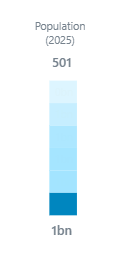
Here’s what we’re building:
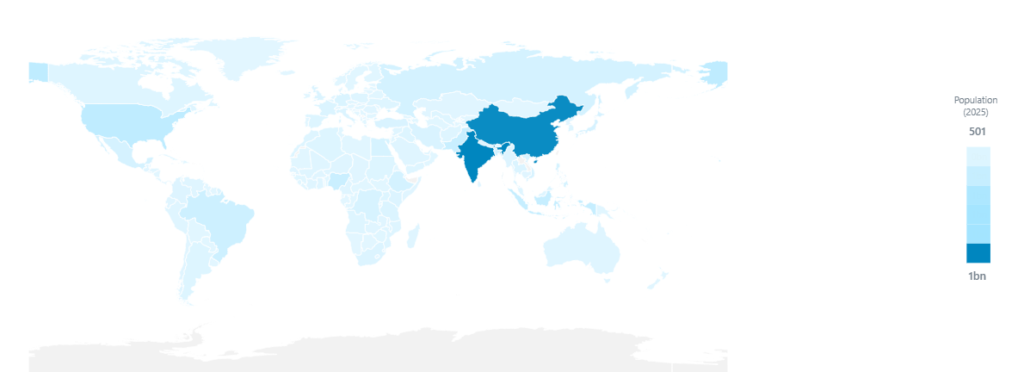
So, how do we build one?
Step 1: Create Bins
Start by creating buckets, or “bins” for the selected metric. Bins in Power BI is a way for us to group a values column into different sized bins or buckets. In the Power BI Desktop application, we can easily bin our metrics:
- In the Data pane, find your metric column. Next, hover over the column, click the ellipsis (…), and select New group.
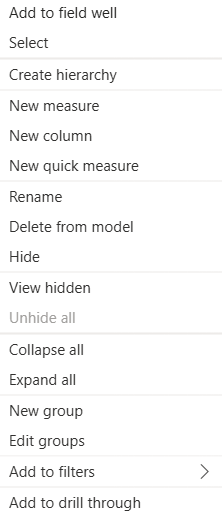
- A dialogue box will open up to prompt you for some additional information.
- First, give your group a name
- For Group type, you can choose between Bin or List, whereas Bin will automatically group your data (similar to a bin in a histogram) and the List option allows you to create groups manually – not ideal for a field with a lot of values.
- For Bin type, choose either Size of bins or Number of bins. This will determine how Power BI handles your groupings (i.e., do you want a specific number of bins – or intervals – in your legend, or is there a specific size of bins you have in mind and you don’t care how many bins).
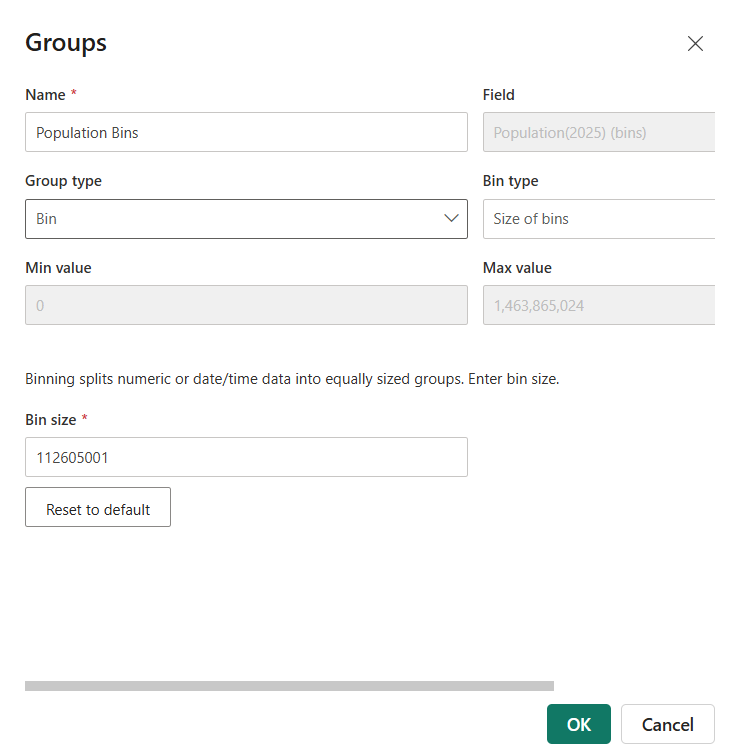
Notice that Power BI calculates the minimum and maximum population and suggests a default bin size. You can change these defaults but think about your data first. In our example, we are working with country populations, so a bin size of 10 would create an enormous number of bins, while a bin size of a billion would create just a few. If you try a value and don’t like the result, you can always click Reset to default to restore what Power BI calculated.
Step 2: Build the Table
Now let’s bring the bins to life.
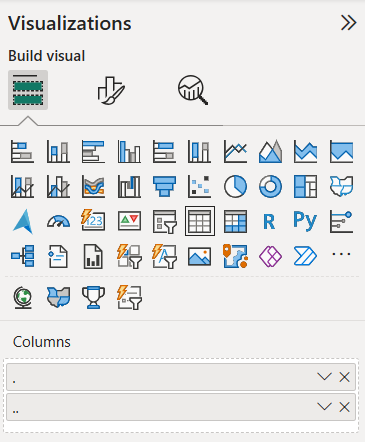
- Without selecting anything on your page, choose the Table visual from the Visualizations pane and place it on your canvas.
- Add your new bins field to the table.
- Add your measure to the table.
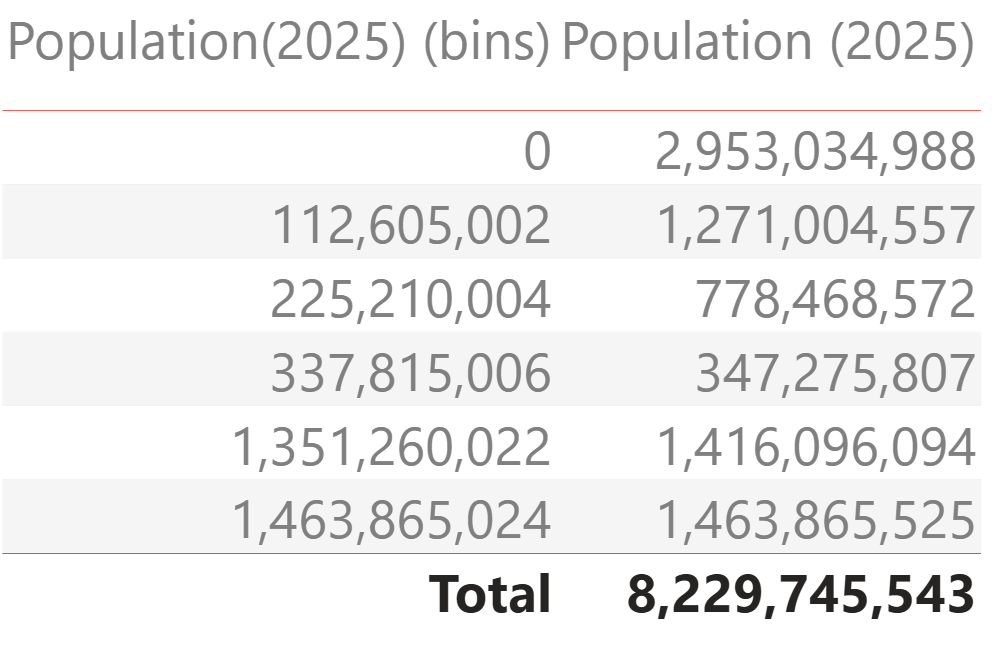
In our example, Power BI created six bins, which is good number for a legend, so we’re keeping it.
If you’d prefer a different number of bins, go back to the bins field, click the ellipsis, choose Edit groups, and adjust the settings.
Step 3: Shrink the Column Headers
To make our table visual look like a legend, we want the table columns to be as narrow as possible. To do that, rename both columns to something tiny:
- Rename the bins column to a single period: “.”
- Rename the population column to a double period: “..”
Using short names means the columns can be resized very narrowly later on, and the headers won’t take up any visual space.
Step 4: Format the Table
With the table in place, open the Format your visual pane and strip it down.
Remove the default styling:
- Under Style presets, change the default to None.
- Turn off the Totals row. We don’t need it in a legend.
Add the colour gradient:
The colour is what turns the table into a legend. Under Cell elements, select ”your measure” column (the one we renamed to two dots) and turn on conditional formatting for both the Background colour and the Font colour:
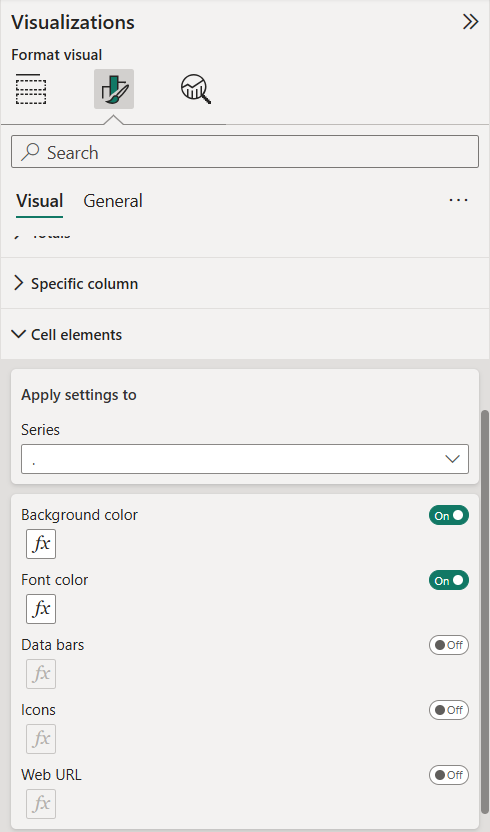
- Click the fx button next to Background colour.
- Add a middle colour to the gradient.
- Choose your colours. We used a light blue, a medium blue, and a dark blue.
- Click OK.
- Repeat the same process for Font colour, using the exact same three colours.
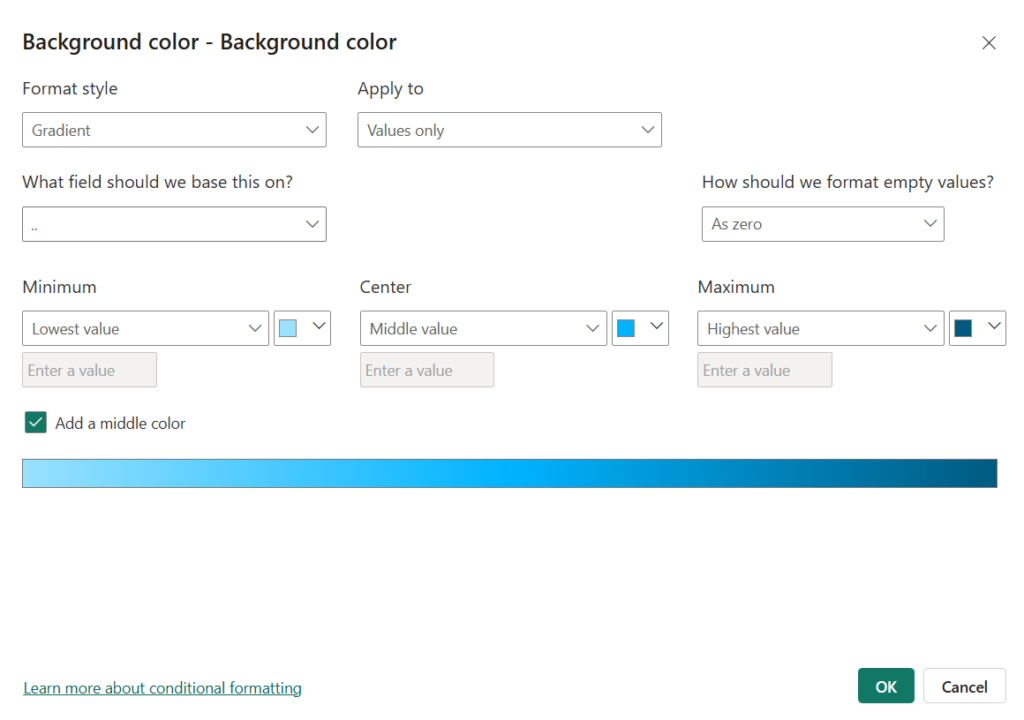
Using the same colours for the background and the font means the numbers disappear into the cells, so what you see is a solid block of colour for each bin.
Make sure these colours match the ones used on your map, otherwise the legend won’t line up with what viewers see.
Step 5: Sort the Legend
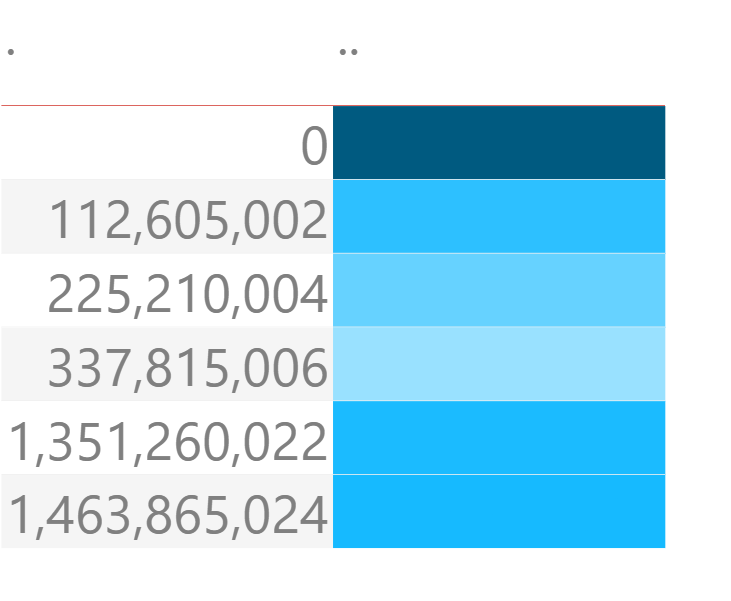
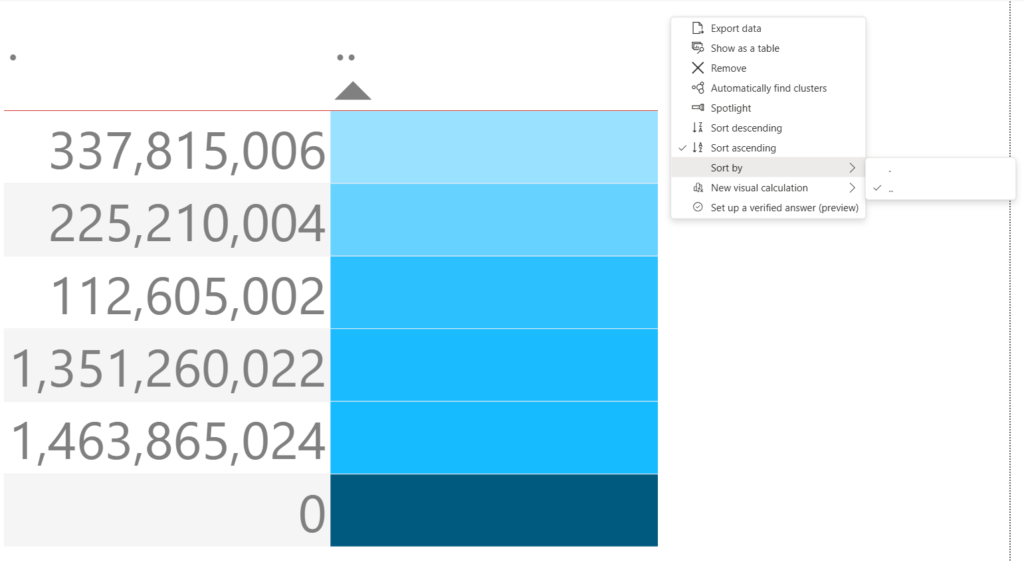
Next, sort your legend from lowest to highest so it reads naturally. Sort the table by your measure column in ascending order. In our example, this puts the lightest shade at the top and the darkest at the bottom.
Step 6: Hide What’s Not Needed
We want viewers to see the colours, but not the labels, headers or gridlines that make it look like a table.
Hide the bins column and headers
- In the Cell elements section, select the bins column (the one we renamed to a single dot) and change its text colour to white (or whatever the background colour of your report).
- Apply the same text colour to the column headers so they disappear into the background.
Remove the lines
- Under Grid, turn off the horizontal gridlines.
- Under Borders, select Top and then deselect it. This removes the line at the top of the table.
Resize the columns
Drag the edges of the columns inward until the table looks like a slim legend. Because we gave the columns such short names, they can be made very narrow.
Step 7: Add the Finishing Touches
A few last tweaks make the legend feel like a natural part of your map:
- Set the background to transparent, so the legend blends in with your report page.
- Remove the header icons.
- If tooltips are turned on, turn them off. This makes the legend informational rather than interactive.
- You may choose to add minimum and maximum values at the extremities of your table for additional context.
Then place the legend wherever you need it on your map. That’s it!
Wrapping it Up...
A custom diverging colour legend is a small detail that makes a big difference to how readable your shape map is. It takes some workaround to get Power BI to do exactly what you want, but the steps are straightforward, and once you understand the idea (a formatted table disguised as a legend), you can get really creative with it.
Need Help Implementing Power BI at Your Organization?
Our Microsoft Certified consultants can help


![Read more about the article Introduction to Power Query: What Is It? [2023]](https://goanalyticsbi.com/wp-content/uploads/2023/04/Intro-to-Power-Query-300x157.png)